1. Preparation for
Use
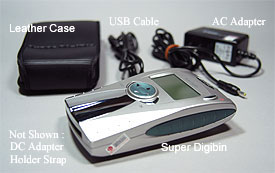
Charge the battery by
using the supplied AC adapter
for the first time for about 8 hours until it is full to ensure
the maximization of the battery
life. Subsequence charge
will take about 3 hours. For travelling the car adapter
can also be used for charging.
2. Files Transfer from Cards to Super Digibin
Insert the CF card into card slot
and check the menu
function for CARD -> DISK then press O.K. The file
transfer is carrying on. From our test, using SanDisk CF
cards, and Sony Memory Stick, the results are :
| Card No. |
MBytes |
Time (Sec) |
MBytes/Sec |
| CF1(256) |
141 |
63 |
2.24 |
| CF2(256) |
124 |
57 |
2.15 |
| CF3(256) |
229 |
103 |
2.22 |
| CF4(512) |
257 |
138 |
1.86 |
| CF5(512) |
477 |
257 |
1.86 |
| MS1(128) |
120 |
115 |
1.04 |
For fully charged battery the image
files of about 6,500
MB, or about 50 CF cards of 128 MB images, can be
transferred into Super Digibin.
3. Installation on the Computer
We used the supplied CD-ROM
driver to install the
Super Digibin on our computer (Windows 2000). The
installation is easy and the computer shows two new
removable drives (one is the hard disk in the Super Digibin,
the other is the memory of the CF card in the CF slot).
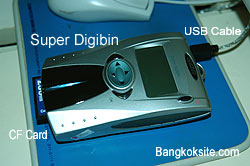
Super Digibin connected via USB 1.1
cable to the computer.
|
Note :
We do not have any connection or
business relationship with the supplier of
this device. The article is to share information
and experiences with the readers and
because it is new technology
for digital photography.
Contact us : somkiet@cscoms.com
. |
|
|
|
4. Files Transfer
from Super Digibin to
Computer
Connect Super Digibin to computer
via USB cable.
Turn on Super Digibin and turn on the computer.
Check at My Computer icon there will be two new
removable disk drives. Check the drive for hard disk
and you will find the Card Folder(S), for example :
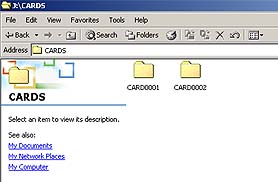
Copy the picture files in each folder e.g. CARD0001
and paste into the folder in the hard disk of computer.
The time required to transfer files from Card 1 and
Card 2 from our test to hard disk of the computer
is as follows :
| Card No. |
MBytes |
Time (Sec) |
MBytes/Sec |
| 1 |
327 |
498 |
0.657 |
| |
|
|
|
5. Summary
The Super Digibin hand held storage device will be
very useful for digital photographers, especially when
travelling or taking a lot of pictures at high resolution.
The files from CF as well as from other cards (using
adapter) can be quickly transferred to the hard disk,
e.g. 20 GB. Then the CF card images are deleted
by the function of the Super Digibin or by using
FORMAT function of the digital camera, thus more
and more pictures can be taken again. From our
test the files transfer rate from card to Super Digibin
is about 1 minute for 128 MB CF card.
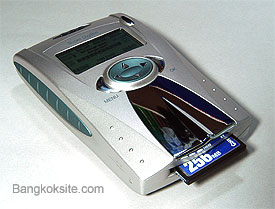
The advantage of this device is that we can only
carry 1-2 CF cards while on the trip and store thousands
of pictures on the Super Digibin. For example, if I took
pictures using Nikon D100 at Fine jpeg mode each
picture would take about 3 MB. Thus I can store upto
about 6,300 pictures or about 1,500 pictures in RAW
or TIFF modes.
Note : The Super Digibin can also be used as a
card reader but the transfer rate is of course slower
than the dedicated card reader. Therefore, if large
amount of images are to be copied into the hard disk
of PC it is better to download images into SDB first
and then transfer from SDB into PC. |
